Sharing the screen
tvpipe puts your screen, a single window or a browser tab on the TV, with sound. tvpipe screen shares from a browser of its own, tvpipe share from yours.
06.1Which command
| To share | Run |
|---|---|
| The screen or a window, with the computer's sound | tvpipe screen |
| A tab of your browser, with its sound | tvpipe share |
| A web page, without opening it yourself | tvpipe share URL, see A web page on the TV |
06.2The screen or a window
$ tvpipe screen --to TV                      # the main screen
$ tvpipe screen --to TV --display 2          # the second screen
$ tvpipe screen --to TV --window "Slides"    # a window whose title contains "Slides"
$ tvpipe screen --to TV --pick               # choose in the browser's picker
tvpipe starts a browser of its own for this, with a separate profile. Its small window appears for a moment and is then minimized. It records and encodes the picture, so the computer stays quick.
The browser shows a bar at the bottom of the screen while it shares. When you share the screen, the bar is in the picture: press Hide.
Choosing a screen or window
--display 2 picks the browser's "Screen 2". On a Mac set to another language, give the name the browser's picker shows, for example --display "Bildschirm 2".
--window takes any part of the window's title, as shown in its title bar. Capital letters matter. If nothing matches, the browser's window comes to the front with its picker: choose there.
On Linux with Wayland the desktop asks which screen or window to share. Choose it there.
Sound
| Screen | Window | |
|---|---|---|
| macOS 14.2 or newer | everything the computer plays | that app's sound |
| Windows 11 | everything | that app's sound |
| Windows 10 | everything | everything |
| Linux | everything | everything |
--no-audio sends the picture only. If you watch with --to browser on the same computer, mute that tab, or the sound comes back as an echo.
06.3A browser tab
tvpipe share opens a page in your own browser that shares a tab, a window or the whole screen.
$ tvpipe share --to TV --open--openopens the page. Without it, tvpipe prints the address.- Press Share… and pick a tab, a window or a screen.
- For sound in Chrome, tick “Share audio” in the picker.
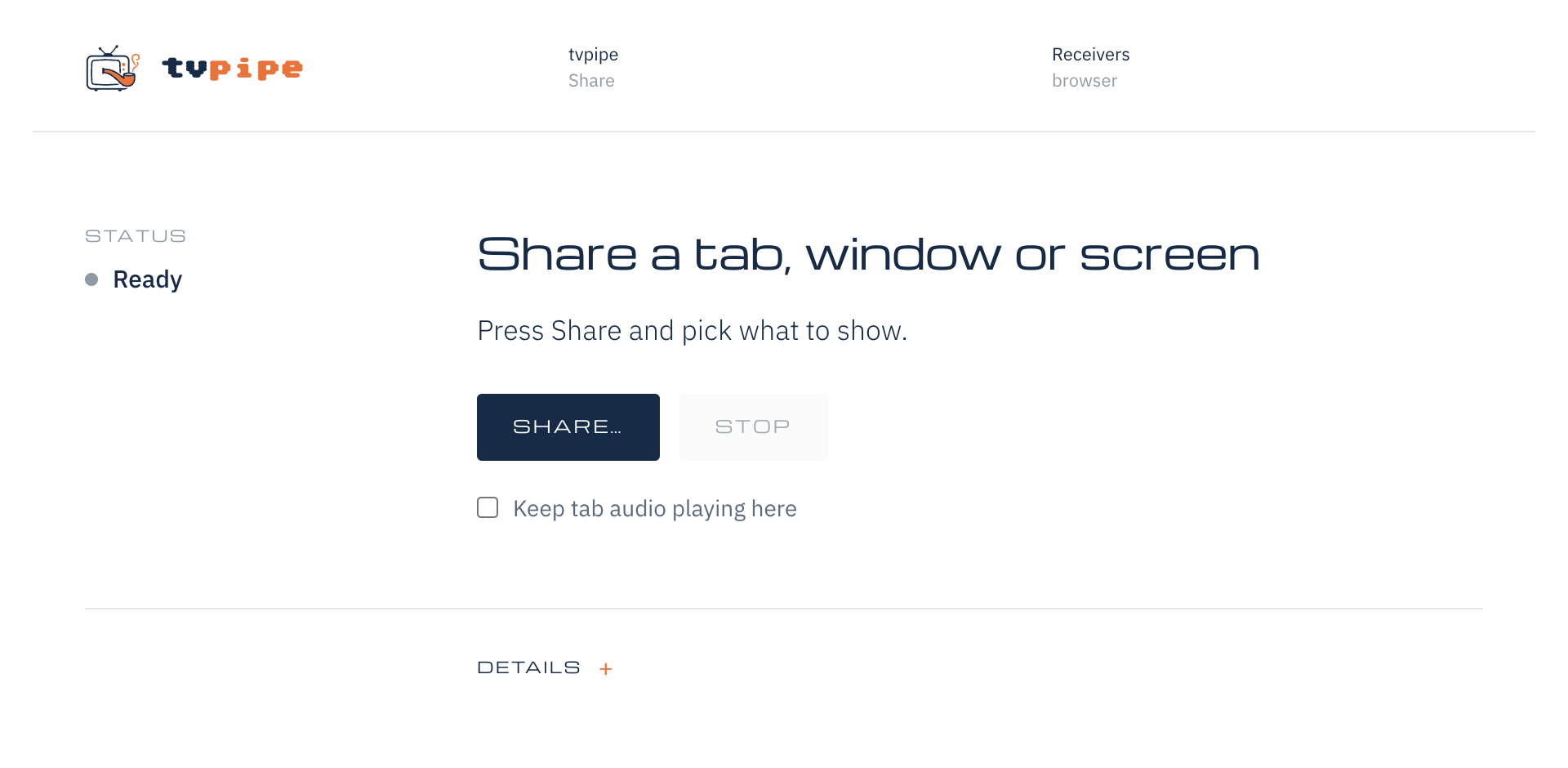
The picture keeps its shape. If it does not fill the TV, tvpipe adds black bars.
The browser mutes a tab while it shares its sound. “Keep tab audio playing here” keeps it audible on the computer too.
Safari and Firefox share windows and screens, but not single tabs, and no sound. To show one tab, share the browser's window and switch it to that tab: the share page keeps streaming in the background. Or drag the tab into a window of its own and share that window.
For a web page with its sound in Firefox, let tvpipe show it in a Firefox of its own: tvpipe share URL --browser firefox (A web page on the TV).
06.4Permissions
On macOS the browser needs permission to record the screen and the sound. The first time, macOS asks for it. If the TV stays black or silent, allow your browser in System Settings and run tvpipe again.
06.5Stopping
| Command | Stop with |
|---|---|
tvpipe screen | Ctrl-C, q and Enter, or Stop sharing in the browser's bar |
tvpipe share | Stop on the share page, stopping the share in the browser, closing the page, or Ctrl-C |
06.6Without a browser
tvpipe screen --engine ffmpeg records with ffmpeg instead, and tvpipe does this by itself when no browser is installed. It sends no sound on macOS and Windows. It shares windows only on Windows and on Linux with X11.